Start Menu
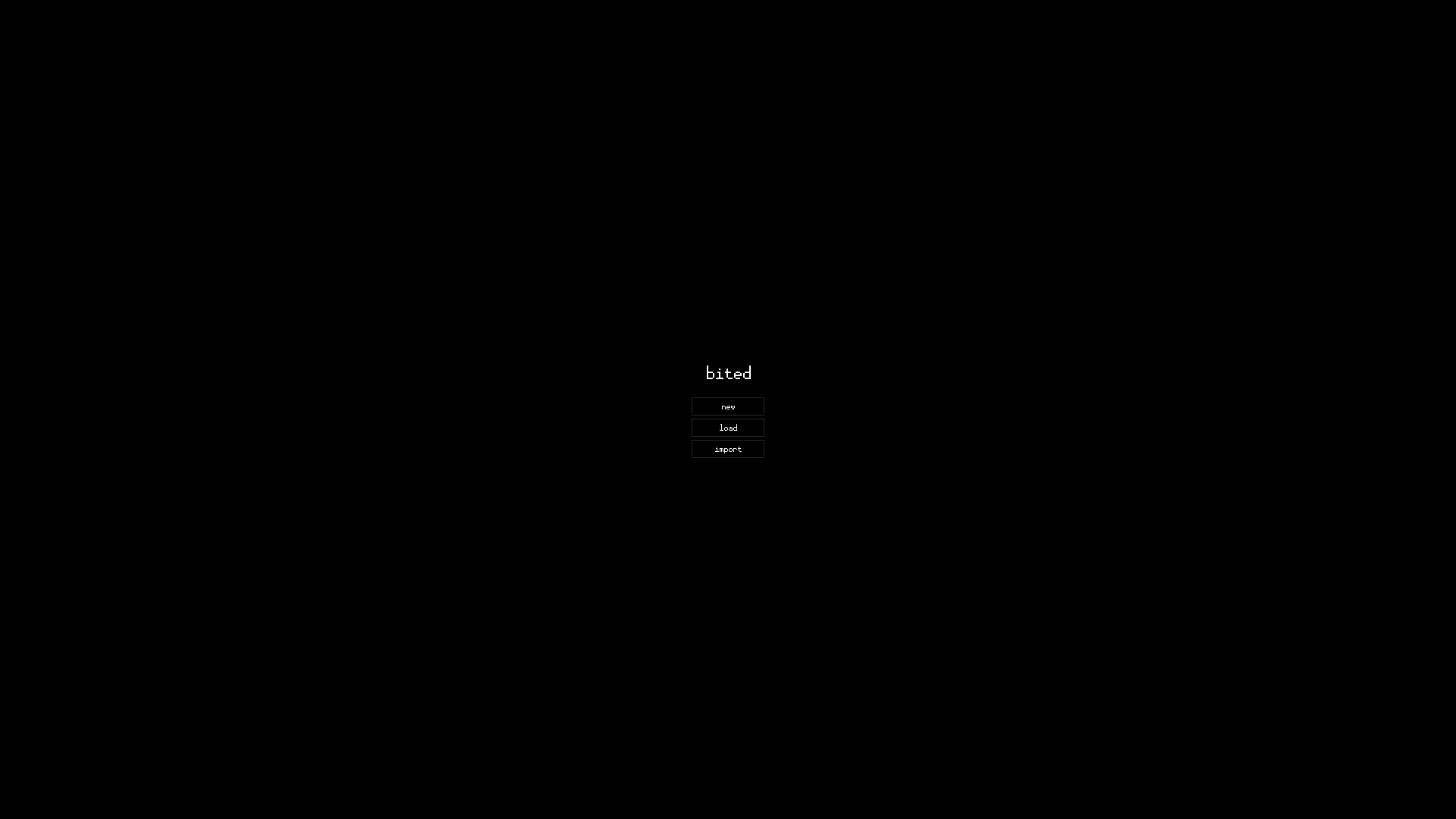
When you first open bited, you'll see this Start Menu:
Note
By default, bited uses your system's dark/light mode to determine its own theme.
You can change this via DISPLAY > theme in the Settings Menu.
Let's see what each of these buttons do.
New
Let's see how to create a new font from scratch. Pressing "new" (or its keybind 1) will bring up the following dialog:
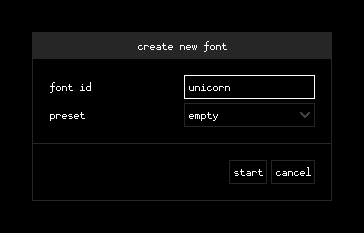
font id
A unique "file name" for your font. May only contain a-z, 0-9, and _. In
the simplest cases, this may just be the name of your font. If you're making
multiple variations on one font family, the ID may also contain other pieces of
info to distinguish it (e.g. helvetica_bold vs. helvetica_regular).
For now, let's set this to unicorn. If you don't like this name (highly
unlikely), you can always change it later.
preset
Some optional starting templates for your font's metrics: height/width, ascent/descent, cap-height, x-height.
Feel free to pick one or leave empty.
Once you've entered in a font id, a "start" button should appear. Let's press
it and see what happens.
Tip
For all dialogs, you can trigger "OK"-type buttons with Ctrl+Enter, and "cancel"-type buttons with Esc.
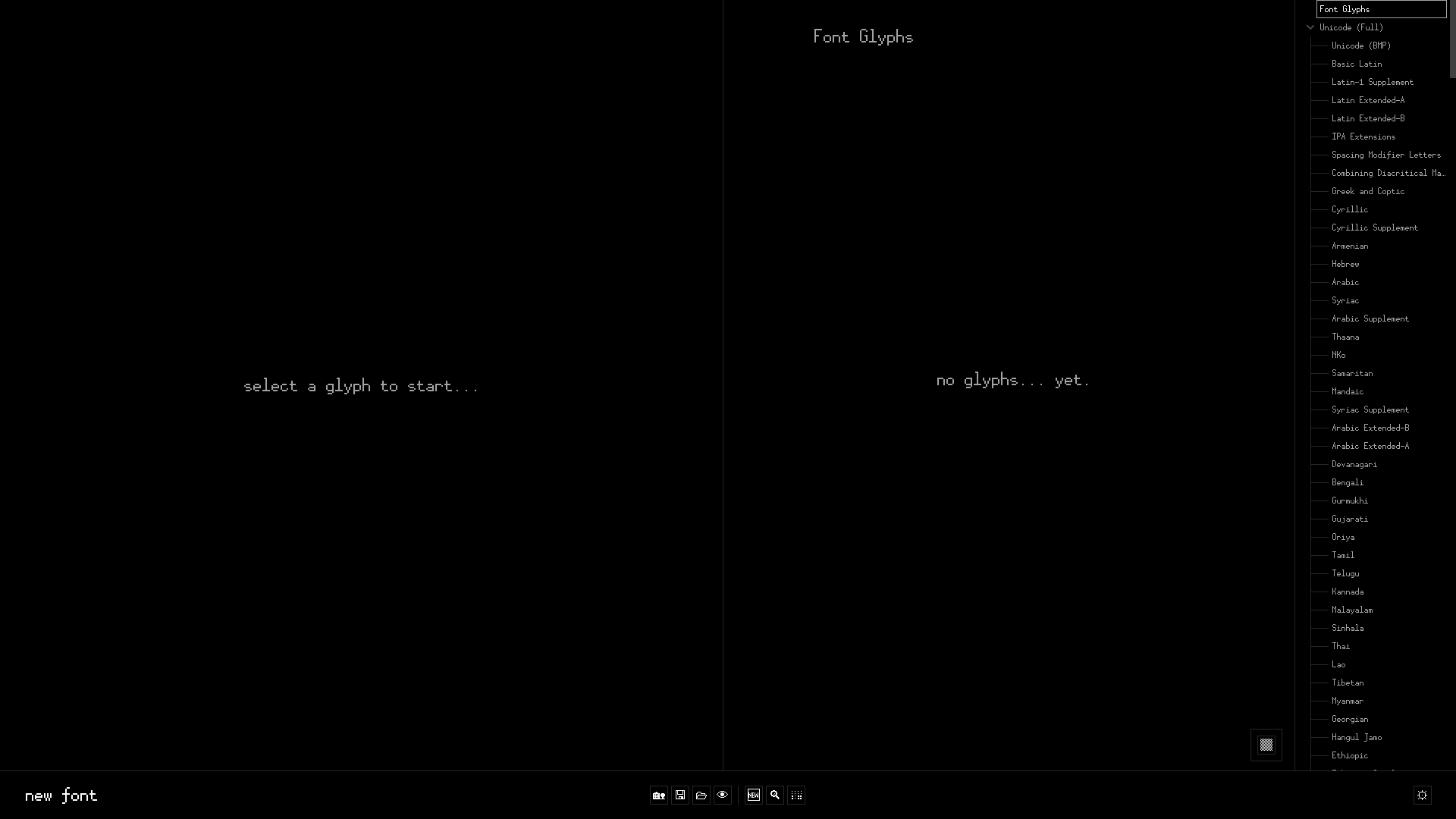
We'll revisit this Main Screen later. For now, have a look at the navbar at bottom of the window. There should be a centered row of buttons. Click the button with a house (or press Ctrl+H) to go back to the Start Menu.
Load
Let's see how to load existing fonts from the font database. Pressing "load" (2) will bring up the following dialog:
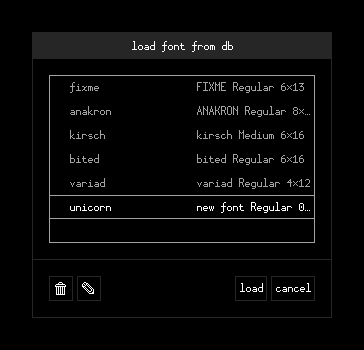
Fonts you create or add will appear here, and can be loaded with the dialog's "load" button or by double-clicking the entry. You can also delete or rename fonts from this dialog.
Feel free to explore around; just return to the Start Menu when you're done.
Import
Before You Continue
Download the BDF for bited's UI font.
Let's see how to import BDFs into bited. Pressing "import" (3) will bring up a file dialog. Locate the previously downloaded BDF and open it. After bited finishes parsing the BDF, you should see the following dialog:
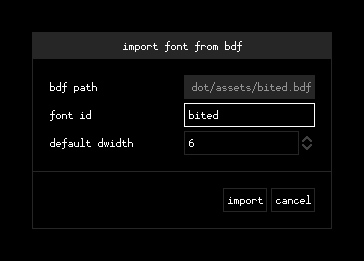
font id
Let's set this to bited.
default width
As the name suggests, a font-wide default glyph width. bited will attempt to automatically derive this when parsing the BDF; otherwise, this field will default to 0. This can be changed later.
For now, let's leave this at 6.
When you're ready, press "import" and you'll see the Main Screen once more:
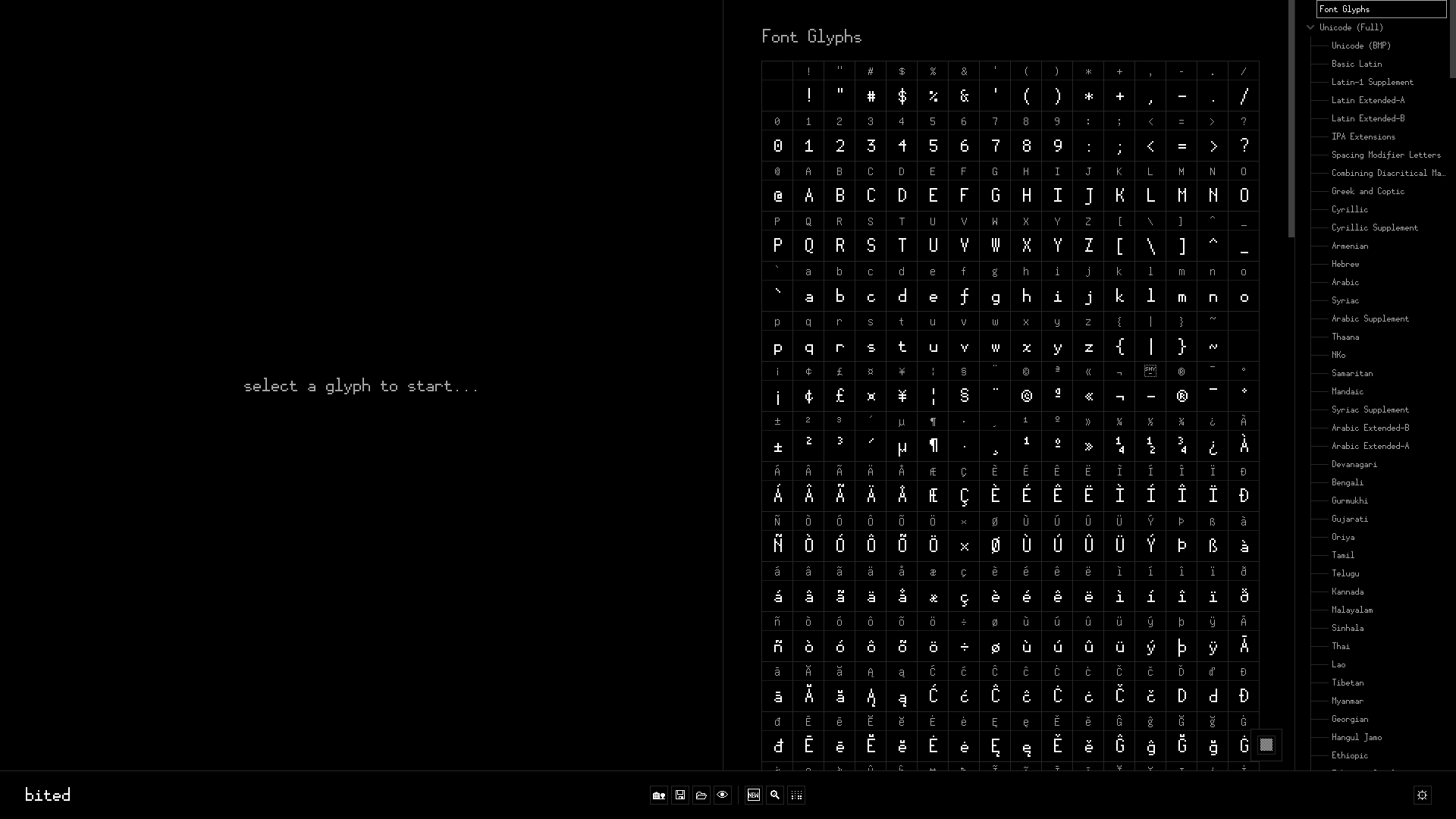
We're now ready to move onto the next section.
Tip
Downloading, importing, and inspecting BDFs in bited is a great way to learn not only about how bited works, but also about the many conventions and choices that bitmap font designers have made.
There exist many wonderful sources of BDFs just waiting to be found. Here is one such repo for these fonts.
Now that you've imported the bited font, you can also use it as a reference font as you go through this manual!